1Collect

Get everything out of your mind and into Doit.im.
Get everything out of your mind and into Doit.im
It's cool to add tasks in a quick and successive way into Inbox Smart-add helps to easily add task title, time, project, etc.
Smart-add helps to easily add task title, time, project, etc
Also, you can 'Create a task' in its full mode if you want to add more info in a time.

2Process and Organize

After collecting 'stuffs', process and organize them:
a. Put future dreams into Someday.
b. Send tasks intended to be done by others.
c. Convert multi-step task into a project and add actions.
d. Finish 2-minute actions and check them off.
e. Put date/time-specific actions into Scheduled or Today.
f. Put as-soon-as-possible actions into Next.
Process and Organize
In organizing, you can edit time, context, projects, reminders, etc.

3Review

Daily review tasks in Today and Next to check actions to take today.
Weekly review tasks in Project and Scheduled to reschedule them.
And regular review Someday dreams to convert to Next Actions.
Review

4Pick next action and Do

You can group tasks by contexts, projects or time, pick what to do next based on context, time and energy you have.
Context

Features of Doit.im for different platforms

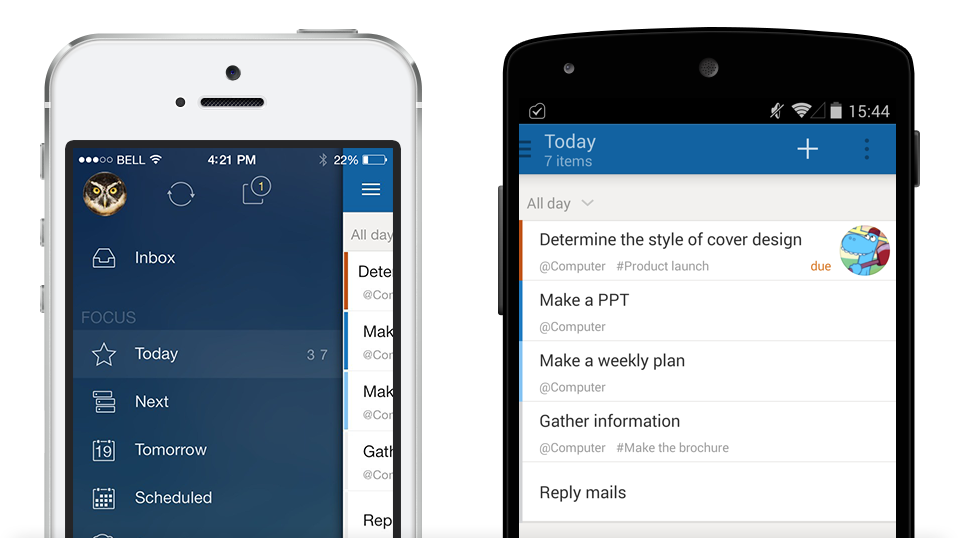
  • iPhone home

    Boxes and Filters

    1. All system boxes are shown on the left sidebar, including Inbox, Today, Next, Tomorrow, Scheduled, Someday, Waiting, Contexts, Projects, Completed and Trash.
    2. Filters you save in web version also appear here.
    3. You can go back to the left sidebar anytime by tapping the icon at the top left corner of the screen.
  • iPhone add task

    Collect tasks

    1. Add full contents
      Click ”+” button at bottom bar
    2. Smart-add to be supported soon
      1. Support to add tasks successively
      2. Quick add task title, start time, context, project, priority, tags
  • iPhone task list

    Efficiency in task list

    1. You can view Start time, Deadline, Context, Project and Priority directly on task bar.
    2. Due and overdue tasks automatically show in Today.
    3. When you complete a task, check it off.
    4. These operations also apply in task lists under projects and contexts.
  • iPhone group by tagfilter

    Group by and Tag filter

    1. You can group tasks by Start Time, Deadline, Context, Project, Priority.
    2. Also, you may filter tasks by tags.
  • iPhone edit task

    Organize tasks

    1. You can modify task title, notes, start time or deadline, or add a context or project so as to easily view it under a certain context/place or project, also some tags to make filtering simpler, or repeat strategy, reminders.
    2. You can send or forward a task to one or more of your family members, friends or colleagues.
    3. Also, you can view task details and post comment on "View Task" page.
  • iPhone other useful functions

    Search, Sync, Settings, and More

    1. Search in current box is supported.
    2. Both auto and manual syn are supported.
    3. New version can be detected during syncing. You can also check it in Settings manually.
  • Android home screen

    Boxes and Filters

    1. All system boxes are shown on Home page, including Inbox, Today, Next, Scheduled, Someday, Waiting, Contexts, Projects, Completed and Trash.
    2. Filters you save in web version also appear here.
    3. You can go Home anytime by clicking home icon.Android home screen icon
  • Android quickadd Android quickadd

    Collect tasks

    1. Smart Add tasksAndroid smartadd icon
      1. Support to add tasks successively
      2. Quick add task title, time, context, project, priority, tags
    2. Add full contentsAndroid addtask icon
      Click ‘Add Task’ button in Menu
  • Android tasklist

    Efficiency in task list

    1. You can view Start time, Deadline, Context, Project and Priority directly on task bar.
    2. Due and overdue tasks automatically show in Today.
    3. When you complete a task, check it off.
    4. You can group tasks by Start Time, Deadline, Context, Project, Priority.
    5. Also, you may filter tasks by tags.
      Android Group by and filter by tags
  • Android task detail

    View task detail

    1. You can view all contents set in View page, by clicking a task in task list.
    2. Also, you can see two buttons on upper right: Move and Edit, by which you can move a task to another box (change Start Time),or edit other info of the task.
    3. Meanwhile, you can page up and down by clicking the arrows at the bottom.
      Android next or prev task
  • Android edit task

    Organize and Delegate

    1. You can modify task title, notes, start time or deadline, or add a context or project so as to easily view it under a certain context/place or project, also some tags to make filtering simplier, or repeat strategy, reminders.
    2. And, you can send or forward a task to one or more of your family members, friends or colleagues.
  • Android menu

    Wow, that’s what I want!

    1. Easily set the current page to First Page you access the app by just clicking the Menu.
    2. Is there a new version? Just check it in About. And we’ll support auto-upgrade soon.
    3. Search and Sync, yes in Menu!
  • iPhone all in one

    Boxes, Task list, Task detail presented on ONE page

    1. iPad’s advantage makes it possible to show boxes, task list and task details all in ONE page.
  • iPhone home

    Boxes, Projects, Contexts, Filters

    1. System boxes shown on the left sidebar include Inbox, Today, Next, Scheduled, Someday, Waiting, Completed and Trash.
    2. By tapping on Projects and Contexts, you can view multi-step tasks (projects) and tasks under certain contexts.
    3. Filters you save in web version also appear here.
  • iPad add task

    Collect tasks

    1. Click "Add Task" buttonat upper right
    2. Smart-add to be supported soon
      1. Support to add tasks successively
      2. Quick add task title, start time, context, project, priority, tags
  • iPad task list

    Efficiency in task list

    1. You can view Start time, Deadline, Context, Project and Priority directly on task bar.
    2. Due and overdue tasks automatically show in Today.
    3. When you complete a task, check it off.
    4. These operations also apply in task lists under projects and contexts.
  • iPad group by tagfilter

    Group by and Tag filter

    1. You can group tasks by Start Time, Deadline, Context, Project, Priority.
    2. Also, you may filter tasks by tags.
  • iPad edit task

    View or Edit a task

    1. Select a task in Task list, you’ll see its ‘Detail page’ at the right side. You can modify task title, notes, start time or deadline, or add a context or project so as to easily view it under a certain context/place or project, also some tags to make filtering simpler, or repeat strategy, reminders.
    2. Task delegation is supported.
      1. After you add a contact and he/she passes your contact application, you can forward tasks to each other.
      2. Meanwhile, you can add comment to a task.
  • iPad other useful functions

    Search, Sync, and More

    1. Search in current box is supported.
    2. Both auto and manual syn are supported.
win_features
mac_features
  • Web sidebar boxes

    Boxes and Filters

    1. System boxes shown on the left sidebar are Inbox, Today, Next, Tomorrow, Scheduled, Someday, Waiting, Contexts, Projects, Completed and Trash. You can also switch to Calendar in Scheduled, Archiver in Completed and Contact by clicking the contact icon at the bottom of the left sidebar.
    2. Filters you save also appear here.
    3. You can choose to show or hide some boxes by clicking Setting icon at the top right corner and then selecting Preferences.Web show or hide sidebar boxes
  • Web smartadd task Web add task

    Collect tasks

    1. Smart Add tasks
      1. Support to add tasks successively
      2. Quick add task title,start time, context, project, priority, tags
      3. Type "^" for adding start time, "#" for adding project, "@" for adding context, "!" for priority and "&" for tags.
      4. Click the "?" icon for hint help.
    2. Add full contents
      Click 'Add Task' button at upper left, and you can add Title, Description, Notes, Start time, Deadline, Tags, Repeat, Reminders and so on for a task.
  • Web tasklist

    Efficiency in task list

    1. You can view Start time, Deadline, Context, Project and Priority directly on task bar.
    2. Due and overdue tasks automatically show in Today.
    3. When you complete a task, check it off.
    4. You can group tasks by Start Time, Deadline, Context, Project, Priority.
    5. Also, you may filter tasks by tags.
  • Web task detail

    View task detail

    1. You can view all contents set on View page by clicking a task in task list.
    2. And, you can see buttons at the upper left of the View page: Back, Convert to project, Edit and Delete, by which you can go back to task list page, make the task become a project, edit the task, or delete it.
    3. And, you can post comment here.
  • Web edit task

    Organize and Delegate

    1. You can modify task title, description, notes, start time or deadline, or add a context or project so as to easily view it under a certain context/place or project, also some tags to make filtering simpler, or repeat strategy, reminders.
    2. And, you can send or forward a task to one or more of your family members, friends or colleagues.
  • Web other useful functions

    Search tasks,Messages and so on...

    1. You can search tasks either in Current or Global boxes.
    2. When someone added you as his/her Doit.im contact, or passed your contact application, or sent you a task, you will receive a system message.
    3. So come to Doit.im now, Sign up free,and enjoy more fun in task managing!